A full drive slows updates, blocks installs and can make Windows sluggish. Deleting things at random is risky and often frees surprisingly little. This guide goes step by step: see first, then clean — starting with what is completely safe.
Step 1: See what is using your space
Open Settings → System → Storage. Windows shows how much space each category uses — apps, temporary files, documents, pictures and so on. Click Show more categories to see all of them.
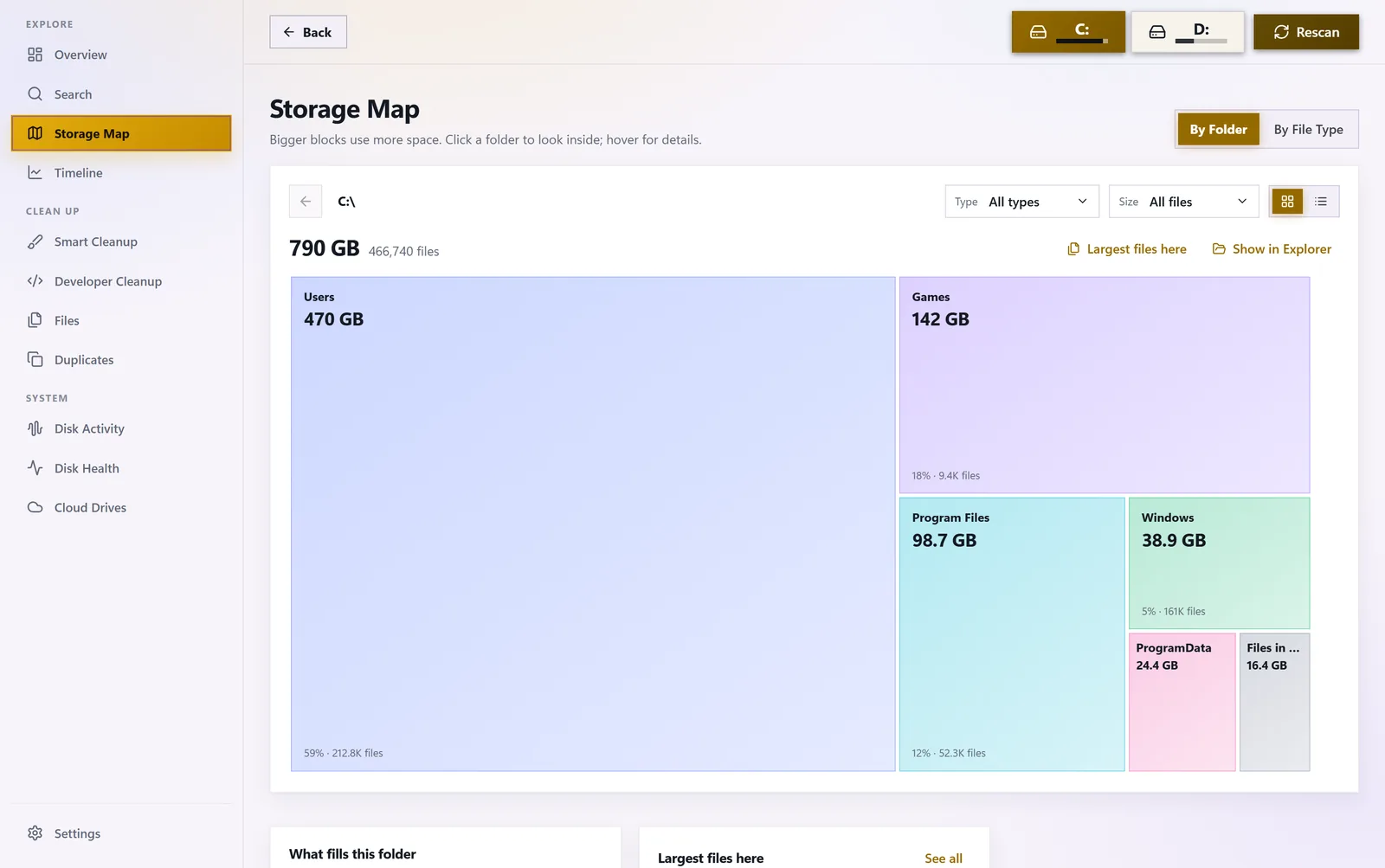
It is a good start, but it only shows categories. It will not tell you which folder grew by 40 GB last week or where the biggest files are. For that you need a storage map that shows every folder by size.
Step 2: Quick wins built into Windows
Empty the Recycle Bin and tidy Downloads
Deleted files stay in the Recycle Bin until you empty it. The Downloads folder is another classic: old installers, ZIP files and videos you only needed once.
Remove temporary files
- Go to Settings → System → Storage → Temporary files.
- Review the list and tick what you want to remove — Windows Update cleanup, Delivery Optimization files, thumbnails, temporary internet files.
- Be careful with Downloads: ticking it removes everything in your Downloads folder.
- Click Remove files.
Turn on Storage Sense
In Settings → System → Storage turn on Storage Sense and open it to choose how often it runs and how long files can stay in the Recycle Bin and Downloads. From then on Windows clears temporary files automatically.
Check Cleanup recommendations (Windows 11)
Settings → System → Storage → Cleanup recommendations lists large or unused files, files already synced to the cloud and apps you have not used for a while.
Clean up system files
Search for Disk Cleanup, select drive C: and click Clean up system files. After a big Windows update, Previous Windows installation(s) can take many gigabytes — removing it means you can no longer roll back to the previous version, so wait until the new one works well.
Step 3: Uninstall apps and games you don’t use
Open Settings → Apps → Installed apps (Windows 10: Apps & features) and sort the list by size. Games are often the biggest items — a single title can take 100 GB or more. Uninstall what you no longer use, or move games to another drive from your game launcher’s settings.
Step 4: Find large and forgotten files
A handful of huge files often takes more space than thousands of small ones. In File Explorer, open drive C:, type size:gigantic in the search box to find files over 4 GB, or size:huge for 1–4 GB.
Typical culprits:
- screen and game recordings, raw video footage,
- ISO files and disk images, virtual machine disks,
- old phone backups and archives,
- installers and ZIP files sitting in Downloads for months.
The trickiest ones are files nobody has opened for a year or more. Windows search does not show “last opened” in an easy way, which is where a dedicated tool helps.
Step 5: Remove duplicate files
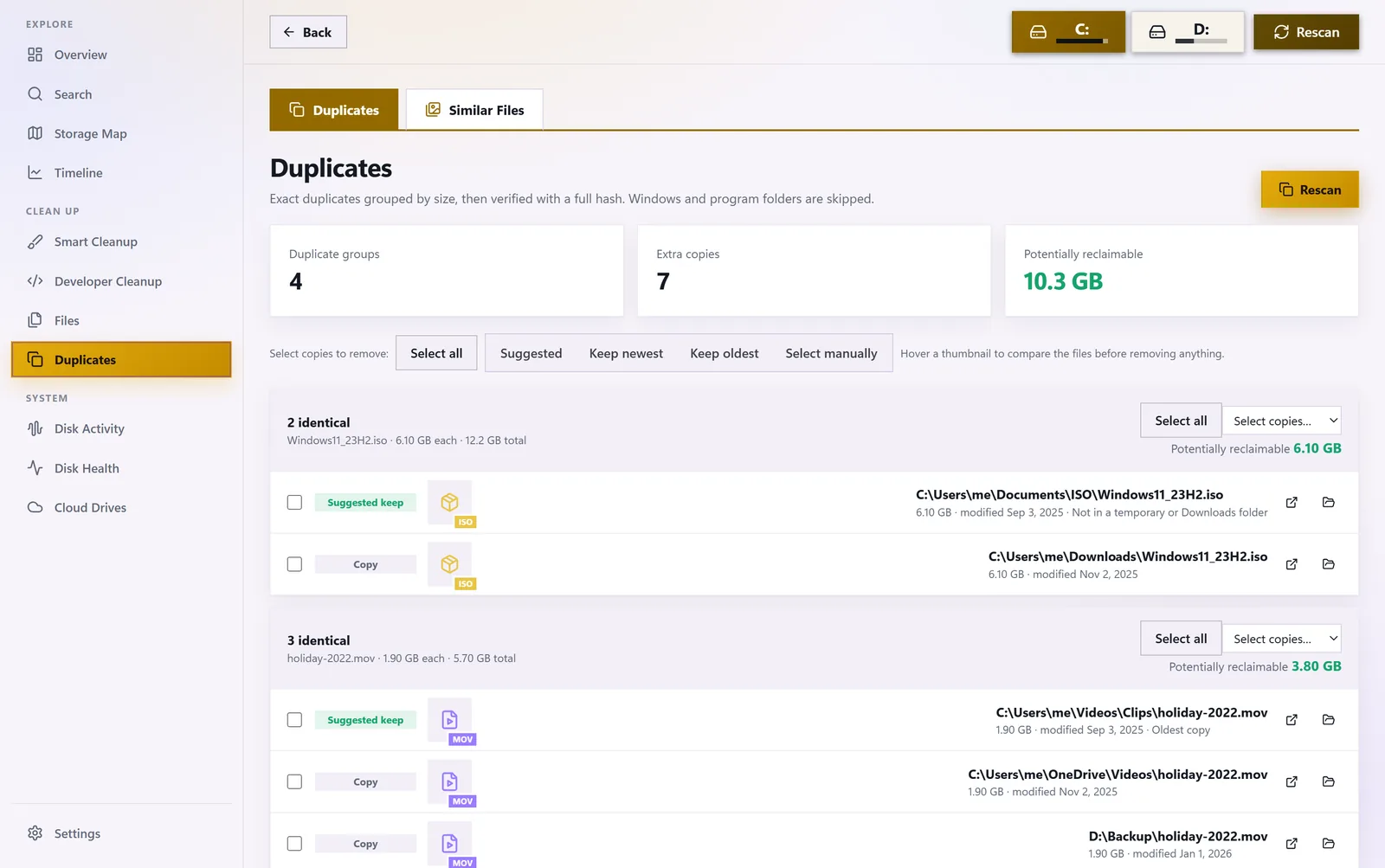
Photos imported twice, the same download saved three times, backups of backups — duplicates add up quietly. Windows has no built-in duplicate finder, and comparing by file name is not reliable: identical files can have different names, and different files can share one.
A safe duplicate check compares the content of files, not their names, and lets you decide which copy to keep.
Step 6: Free up space used by OneDrive and other cloud drives
Cloud folders can quietly fill your disk with downloaded copies. You can keep the files in the cloud and remove only the local copy:
- OneDrive — right-click a file or folder and choose Free up space. The file stays in OneDrive and downloads again when you open it.
- Dropbox, Google Drive and iCloud — use their online-only, streaming or “remove download” options in the same way.
Step 7: Bigger savings for advanced users
- Hibernation file. If you never use hibernation, run
powercfg /h offin Terminal opened as administrator. It removeshiberfil.sys, which can take several gigabytes, but also turns off hibernation and Fast Startup. - System Restore. Restore points can take a lot of space. Search for Create a restore point, select drive C:, click Configure and lower Max Usage — keep some space so you can still restore.
- Developer caches. Old
node_modulesfolders, Rusttargetfolders, package caches and container images can reach tens of gigabytes. - Change where new content is saved. Settings → System → Storage → Advanced storage settings → Where new content is saved sends new apps, documents and media to another drive.
What you should never delete by hand
- C:\Windows\WinSxS and System32 — core Windows components. Use Disk Cleanup or Storage settings instead.
- pagefile.sys and swapfile.sys — Windows’ virtual memory. Do not delete them directly.
- Folders in Program Files — uninstall the app instead, or it may leave Windows in a broken state.
- AppData folders of apps you use — they hold settings, profiles and saved data.
Registry cleaners do not free any meaningful disk space and can cause problems. Skip them.
Do it all in one place with Disk Drive Cleaner Pro
The built-in tools cover the basics, but they are spread across several screens and do not show where your space actually went. Disk Drive Cleaner Pro is our app that puts it all in one view:
- Storage map of every folder, by folders or by file type, with one click to open a folder in File Explorer.
- Smart cleanup of temporary files, caches, crash dumps, old installers and program leftovers, sorted into safe and worth a look. Files go to the Recycle Bin, and caches of running programs are skipped.
- Duplicate finder verified by a full content hash, plus similar photos and videos.
- Largest files and “forgotten giants” — huge files nobody has opened for months or years.
- Cloud drives — see which OneDrive, Dropbox, iCloud and Google Drive files take up local space and free them while keeping them in the cloud.
- Timeline and alerts — what changed today or this week, and a notification when a folder suddenly grows by 10 GB or more.
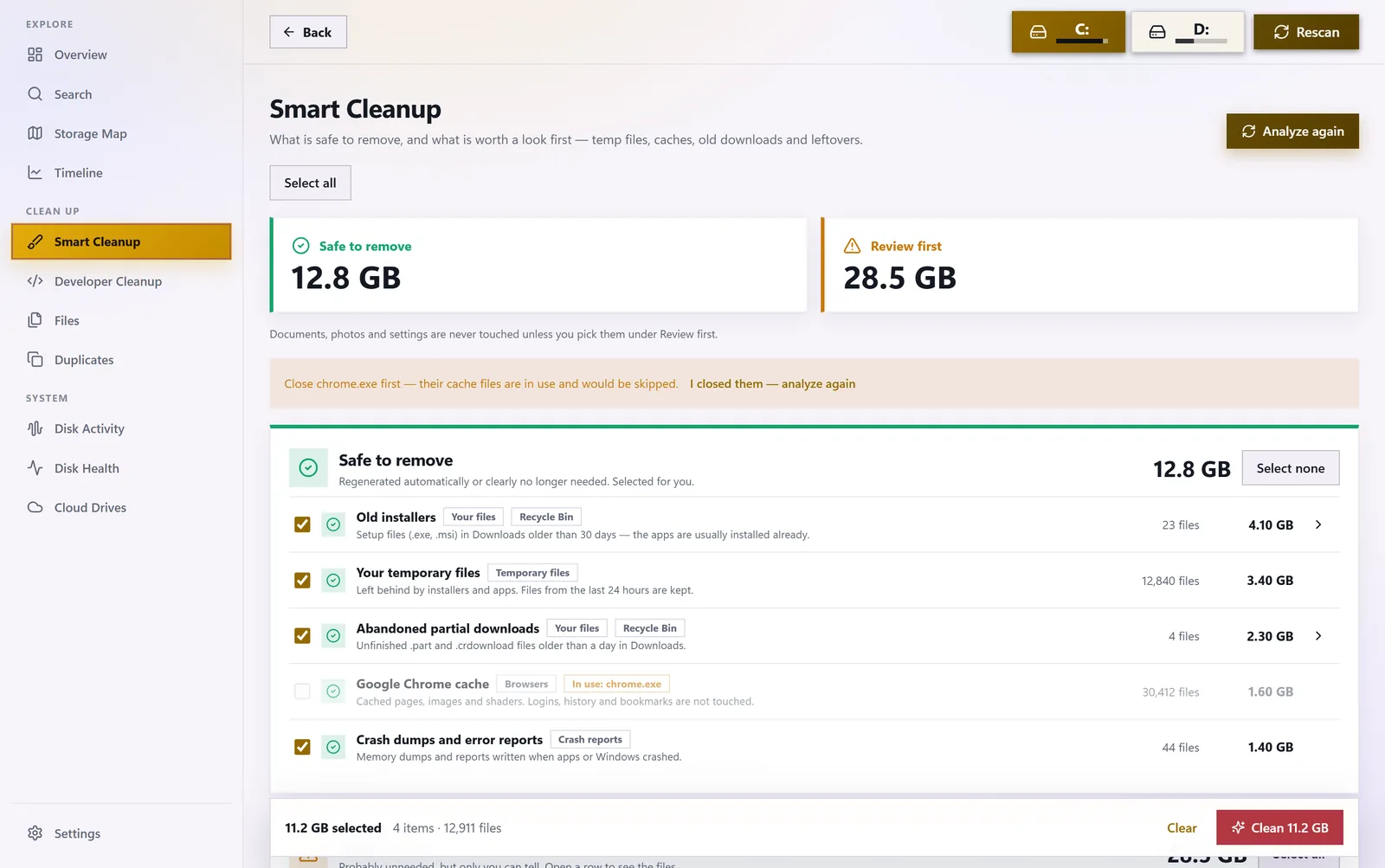
It runs with standard permissions and never asks for administrator rights. There is no account and no telemetry; scan history stays in a local database on your PC.
Frequently asked questions
Why is my C drive full for no reason?
Usually it is a mix of temporary files, Windows Update leftovers, the hibernation file, restore points, app and game caches, cloud folders keeping local copies and large downloads. A storage map shows which of these it is on your PC.
Is it safe to delete temporary files?
Yes, when you use Windows’ own tools or Storage Sense — files that are in use are skipped. Avoid deleting system folders by hand.
How much free space should I keep?
A good rule of thumb is at least 10–15% of the drive. Windows needs room for updates and virtual memory, and SSDs work best when they are not completely full.
How do I find duplicate files in Windows?
Windows has no built-in duplicate finder. Use a tool that compares file content rather than names, so it only finds truly identical files, and review the groups before removing anything.
Can I free up space without deleting my files?
Yes. Make cloud files online-only, move games and media to another drive, and send new content to a different drive in Settings → System → Storage → Advanced storage settings.