

Screen protection · Windows 10 & 11
OLED Burn-In Protection
Keep your OLED looking like day one.
The taskbar, a game HUD or a logo glow the same for hours and wear the panel faster. The app shows where this happens and reduces it.
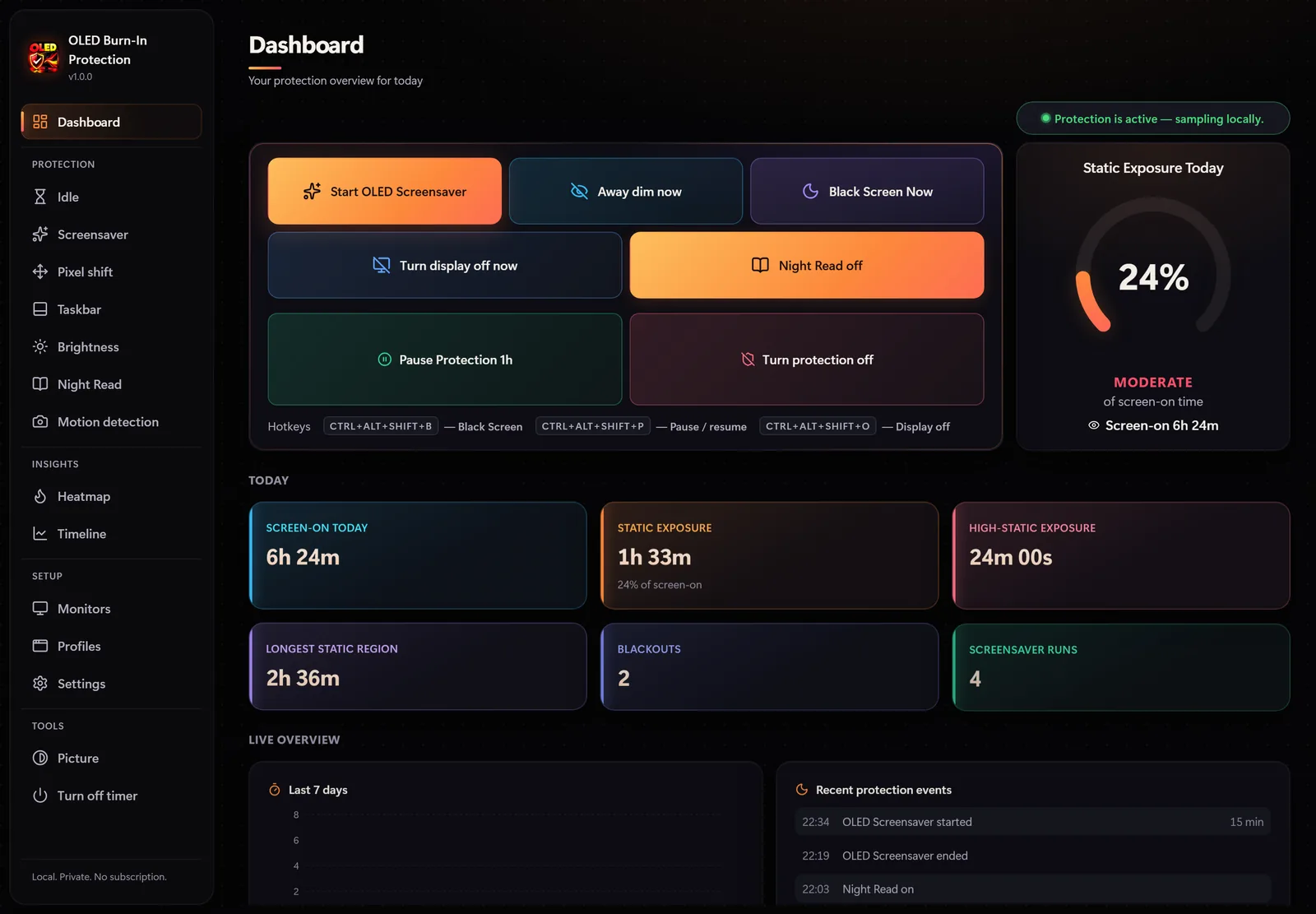
OLED Burn-In Protection
Try it free
20
OLED-safe screensavers
32×18
is all the optional camera sees — just a brightness grid
38
interface languages
0
screenshots saved by the analysis
Unique feature
Your screen knows when you walk away — like flagship OLED monitors
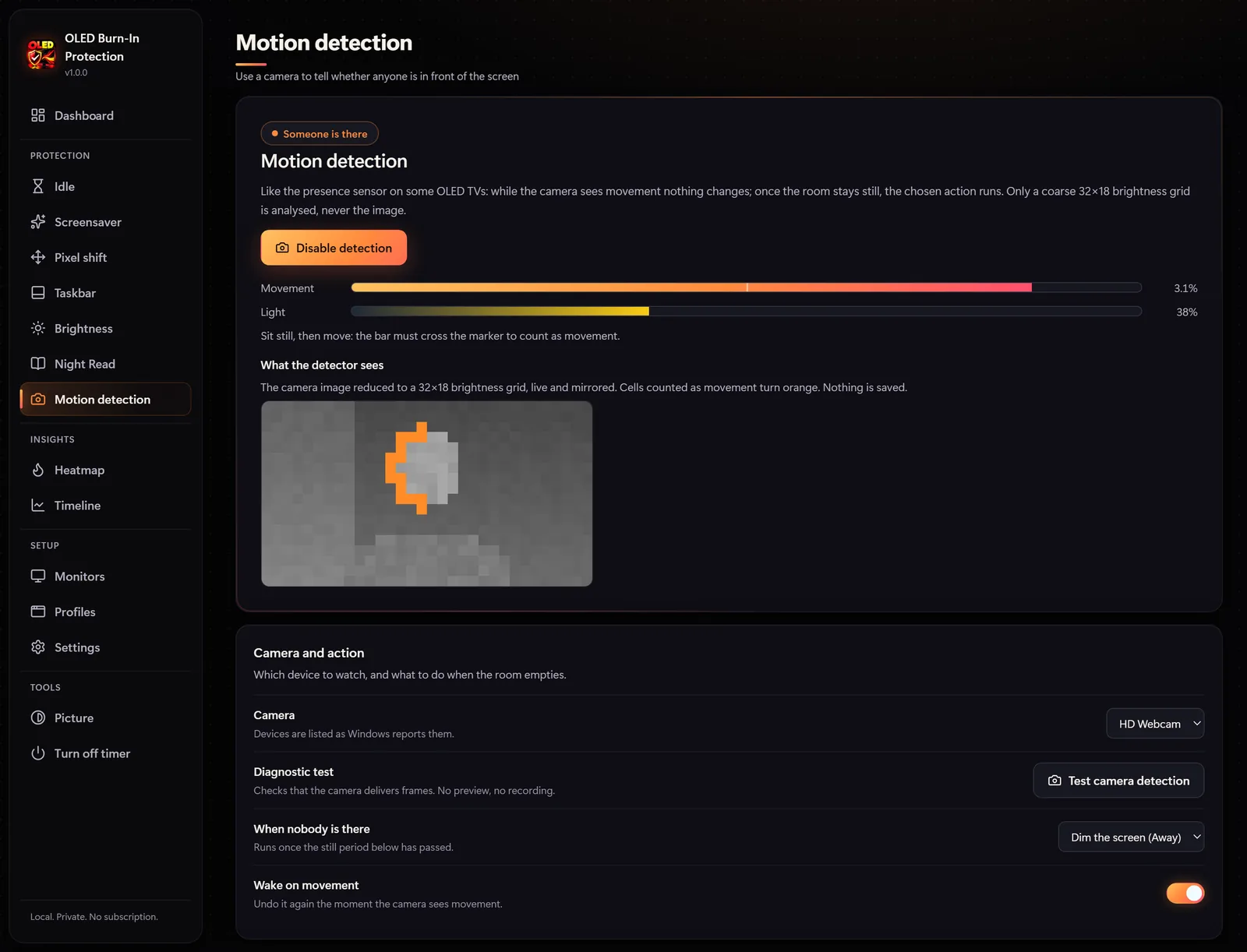
Flagship OLED monitors and TVs have a presence sensor that protects the screen when nobody is there. OLED Burn-In Protection does the same on any OLED monitor — all it needs is an ordinary webcam.
- You leave your deskThe camera sees that nothing in the frame is moving.
- The room stays emptyAfter the still time you set, your chosen action runs — for example dimming the screen.
- You come backMovement in front of the camera brings the picture back instantly.
Off by default. Each frame is turned in memory into a 32 × 18 grid of brightness values — no image is ever saved or sent.
What the detector sees · 32 × 18
 Your screen
—Browser simulation — no camera access.
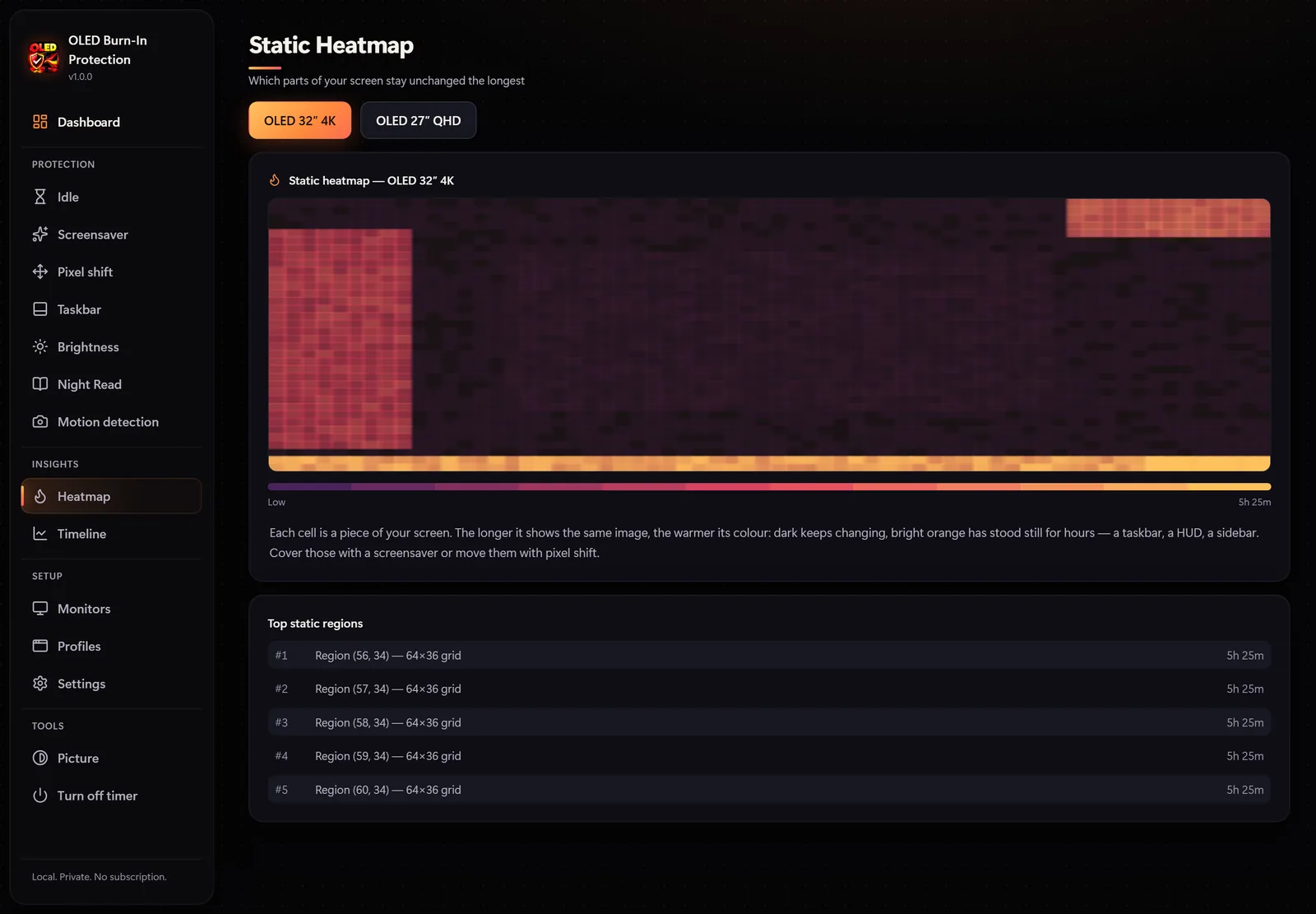
01 — HEATMAP
See what never moves
Each screen area is coloured by how long it has shown the same image.
- A list of the most static regions with exposure time
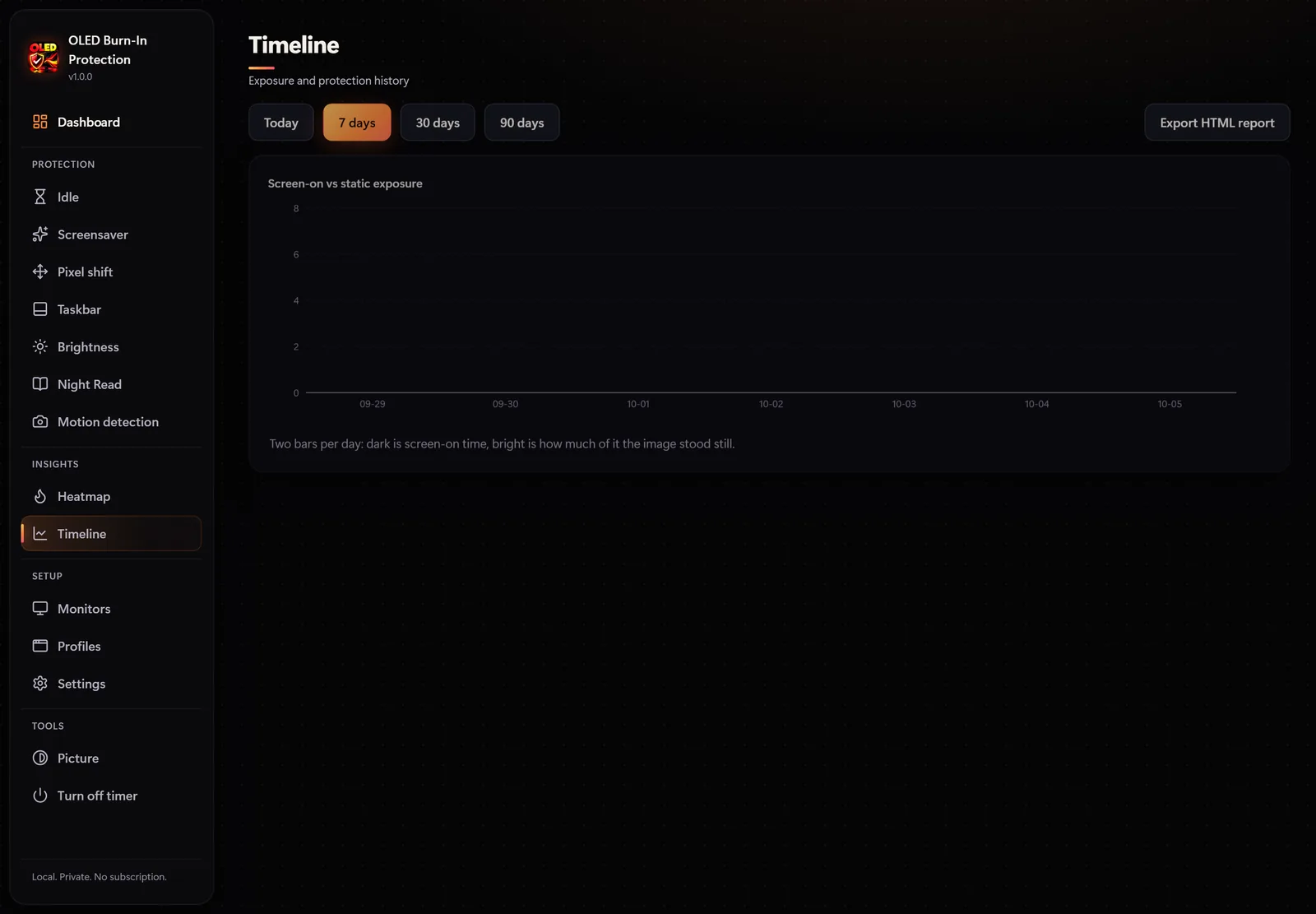
- Daily statistics, history and an HTML report
- Analysis on your PC only — never any screenshots
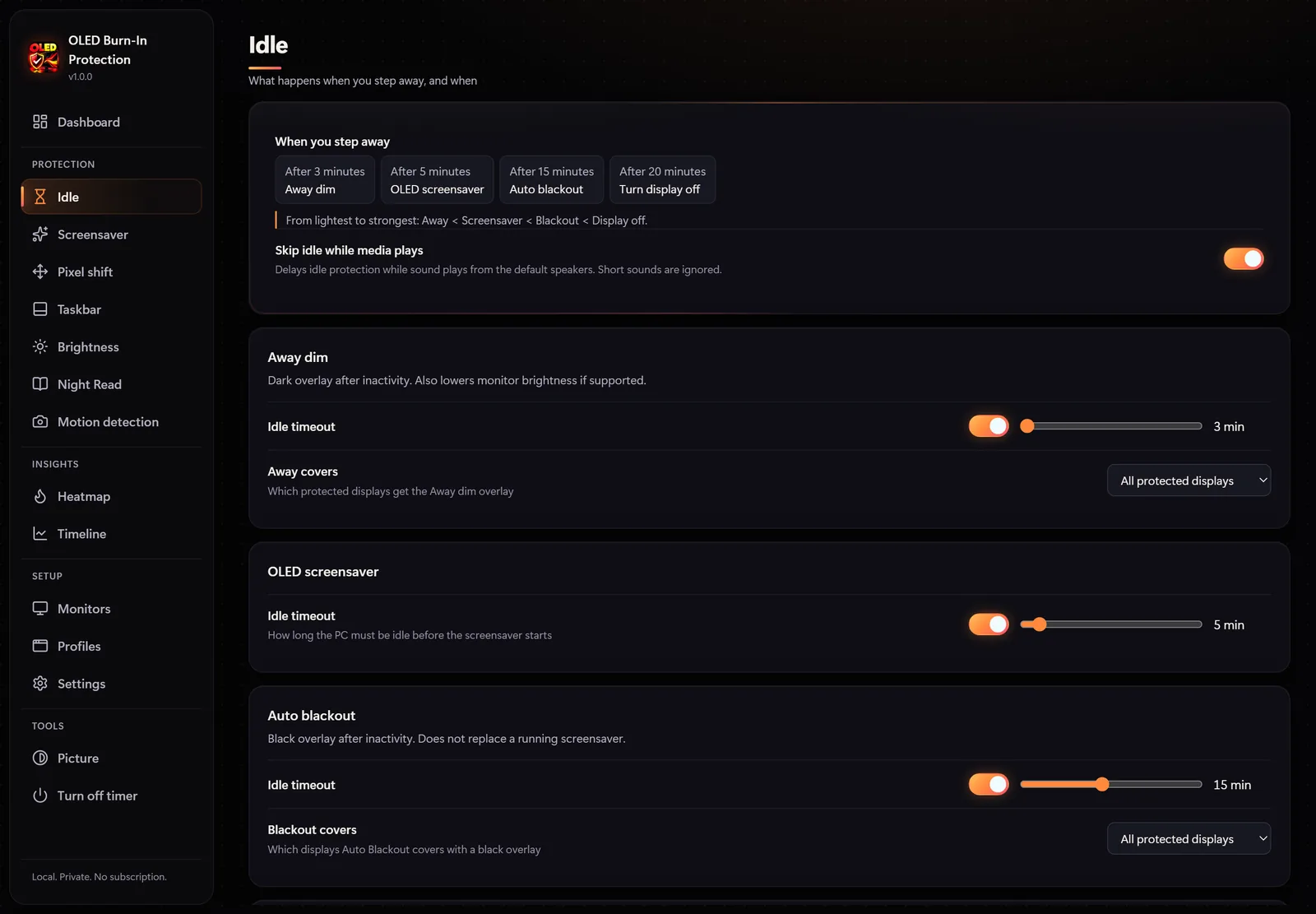
02 — IDLE
A rest for your screen when you step away
After a few idle minutes: dimming, an OLED screensaver, a black screen or display off.
- Protection waits while video or music is playing
- Never interrupts full-screen games or movies
- Sleep timer with a warning and an option to cancel
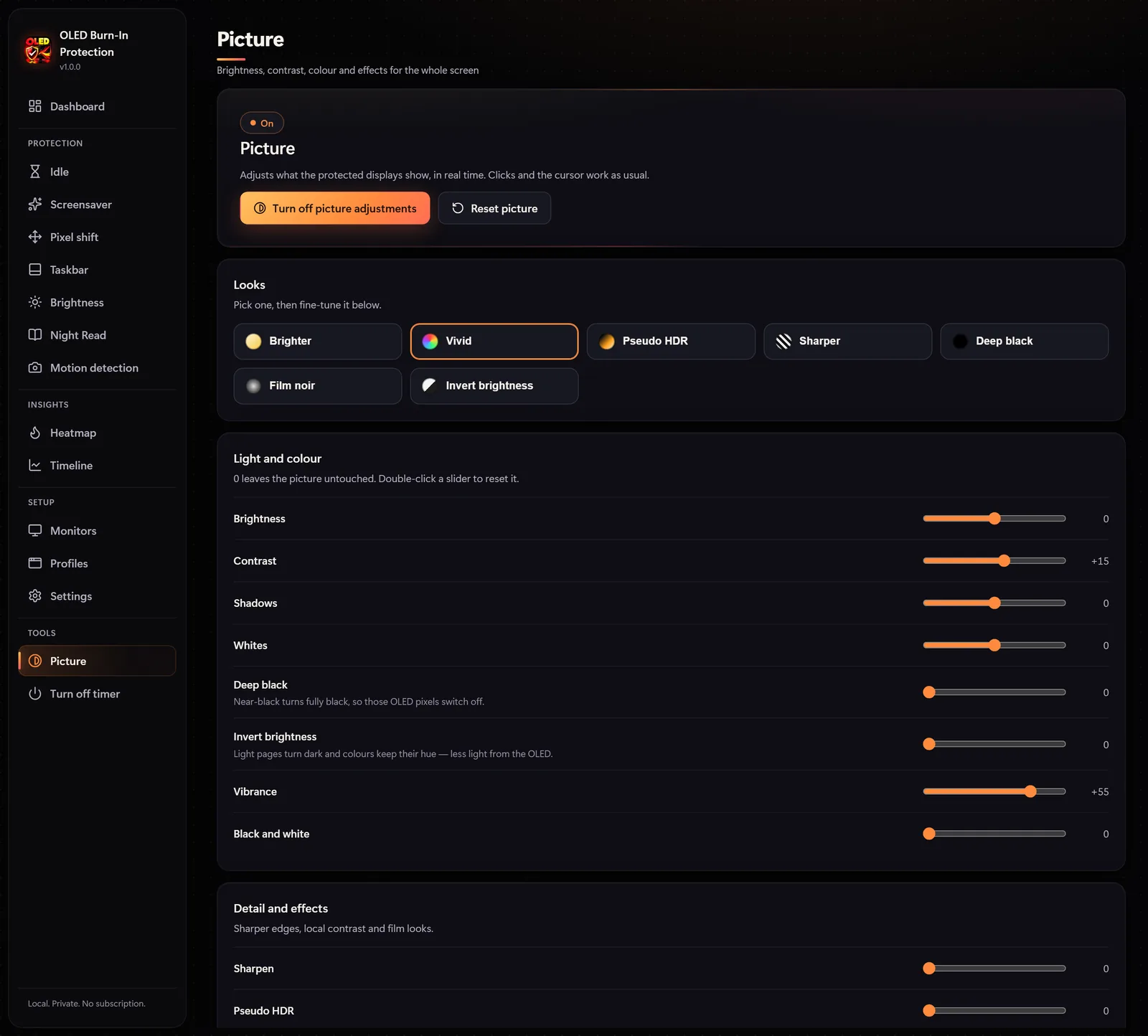
03 — PICTURE
Live colour and contrast for the whole screen
Brightness, contrast and colours for the whole screen in real time. Deep black and Invert brightness also ease the load on the OLED panel.
- Brightness, contrast, shadows, whites, vibrance and sharpening
- Looks: Vivid, Pseudo HDR, Deep black, Film noir, Invert brightness
- Changes apply instantly, and one click restores the original picture
Interactive demo
Watch a static screen heat up
The taskbar and logo “heat up” pixels. Move the cursor and turn on protection to see the difference.
LOW HIGH
Static exposure: 0%
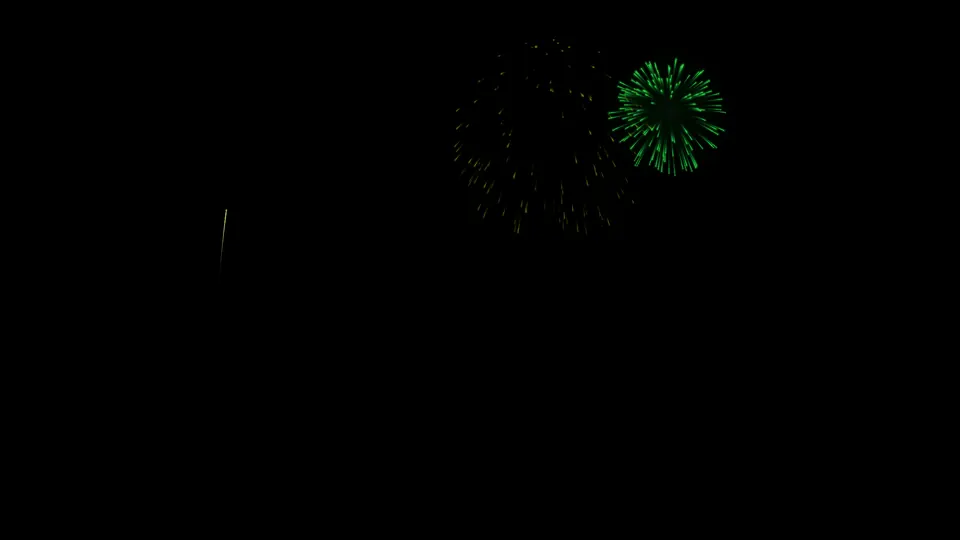
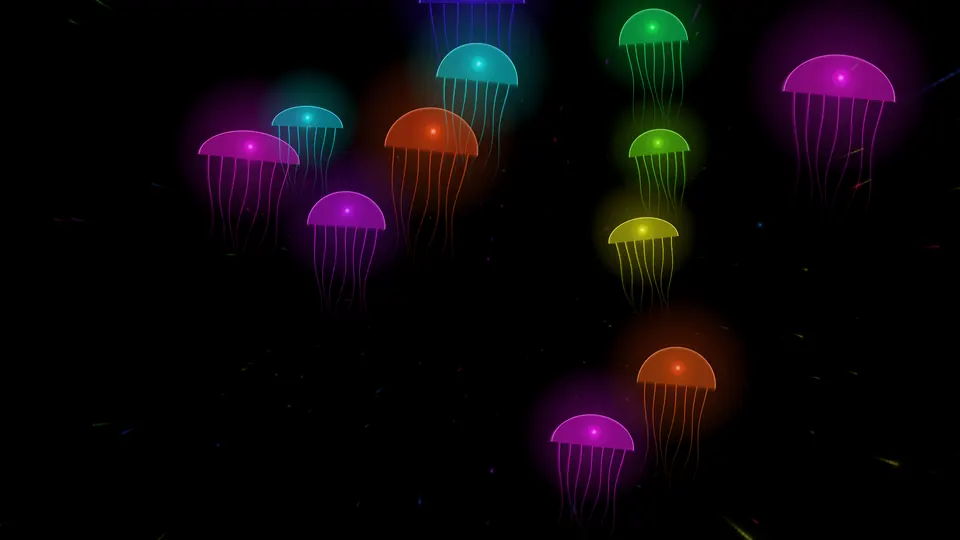
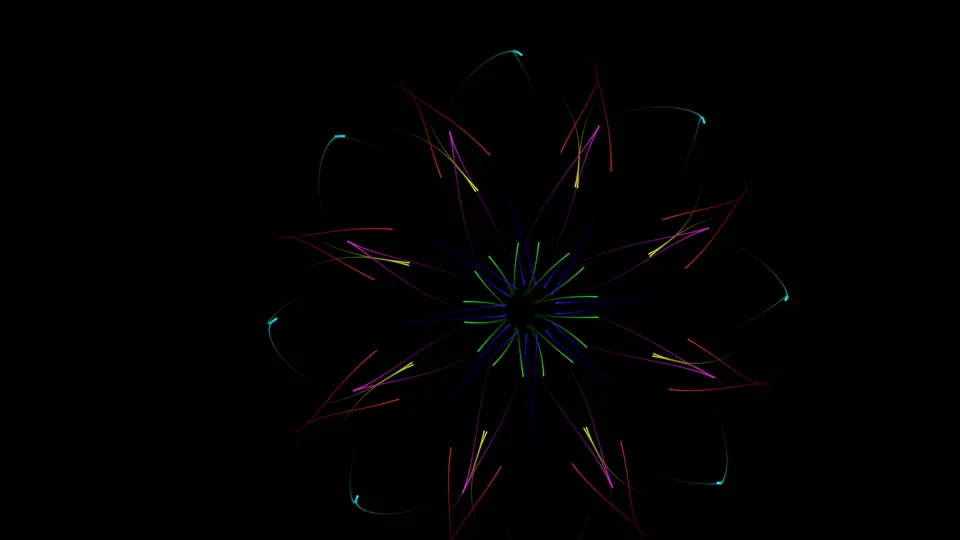
20 screensavers
Made for OLED. Every pixel in motion.
Mostly black and always moving — no part of the panel glows the same for long.
 Fireworks
 Jellyfish
 Kaleidoscope
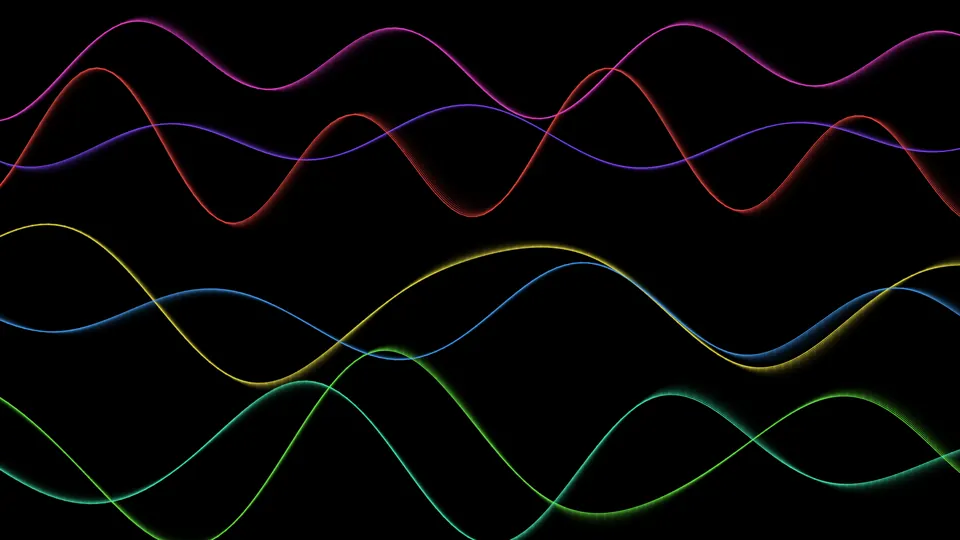 Neon waves
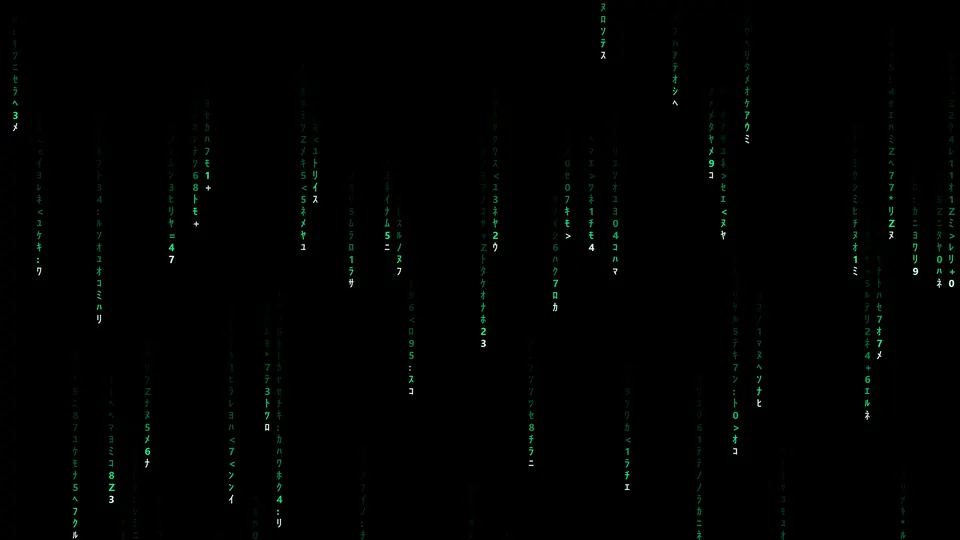 Digital rain
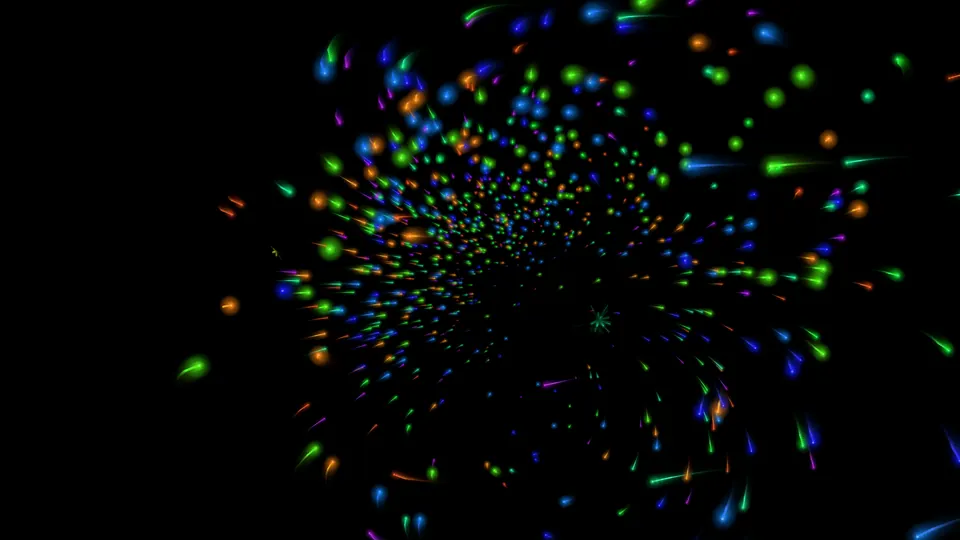 Photon storm
 Synth tunnel
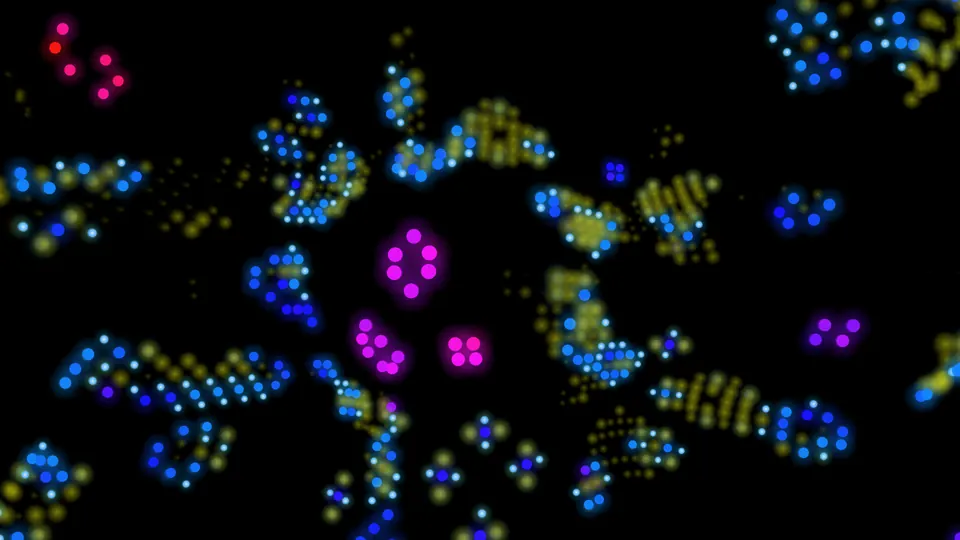 Game of Life
 Cosmic tunnel
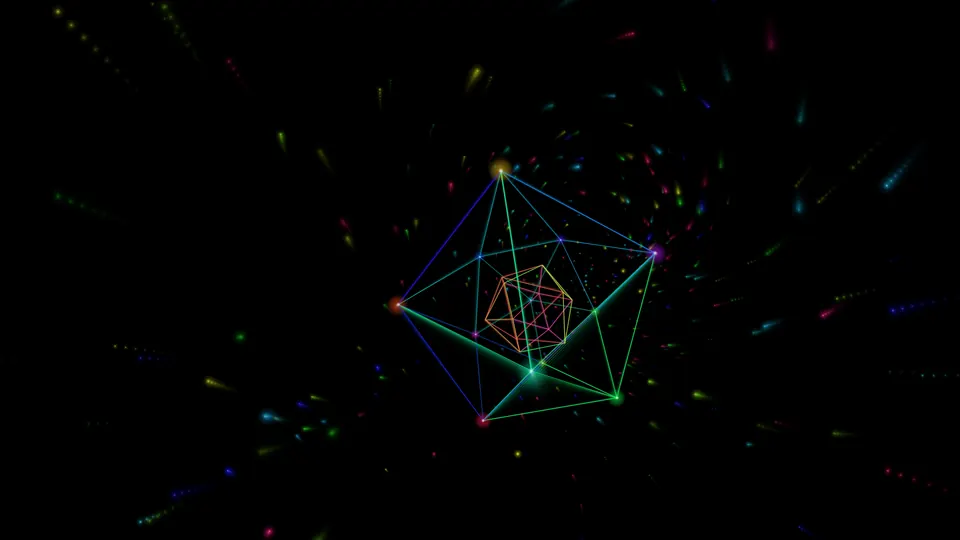 CRYSTALS
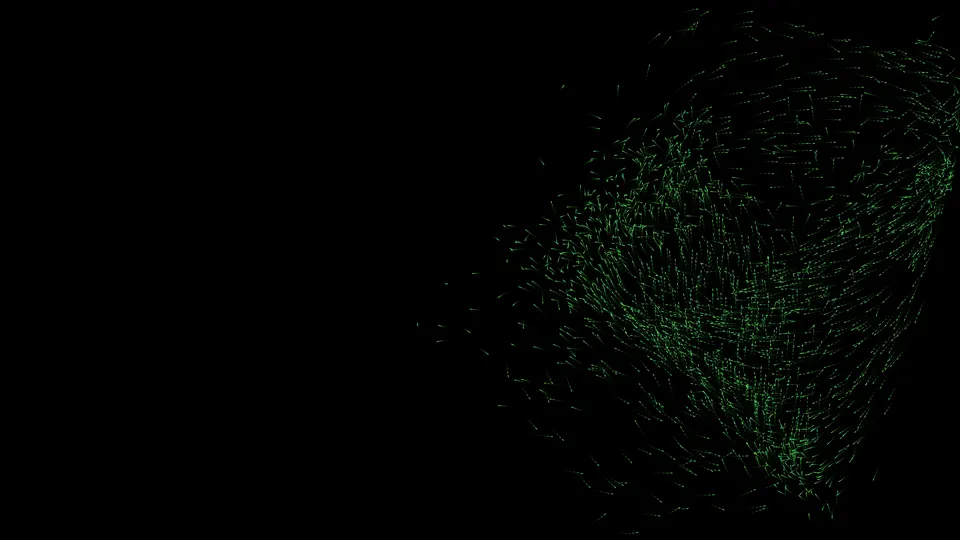 Murmuration
 Fireflies
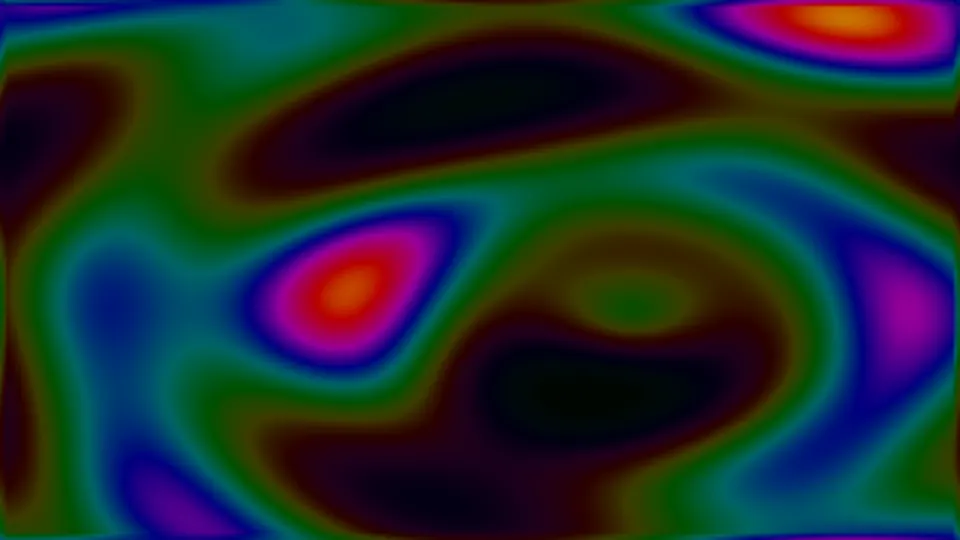 Plasma
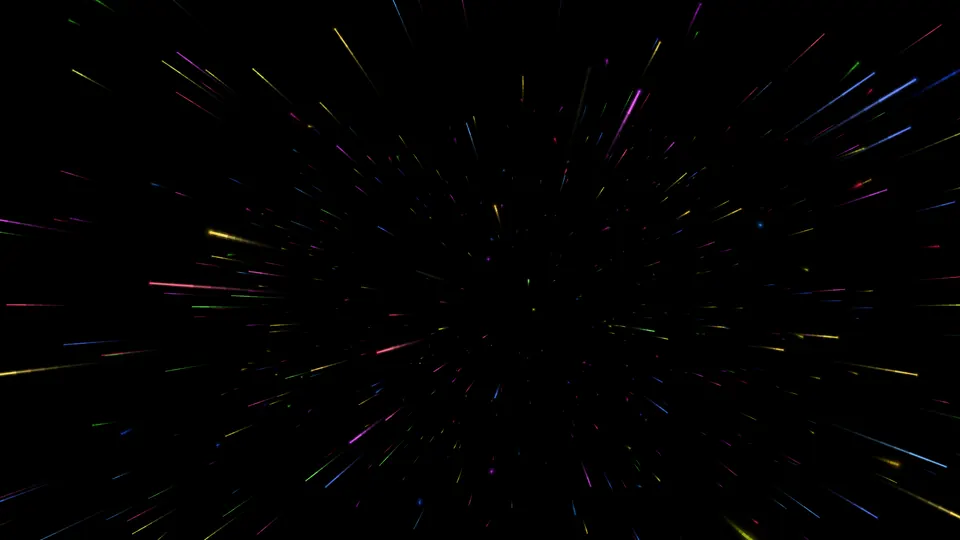 Starfield
 BLOCKS
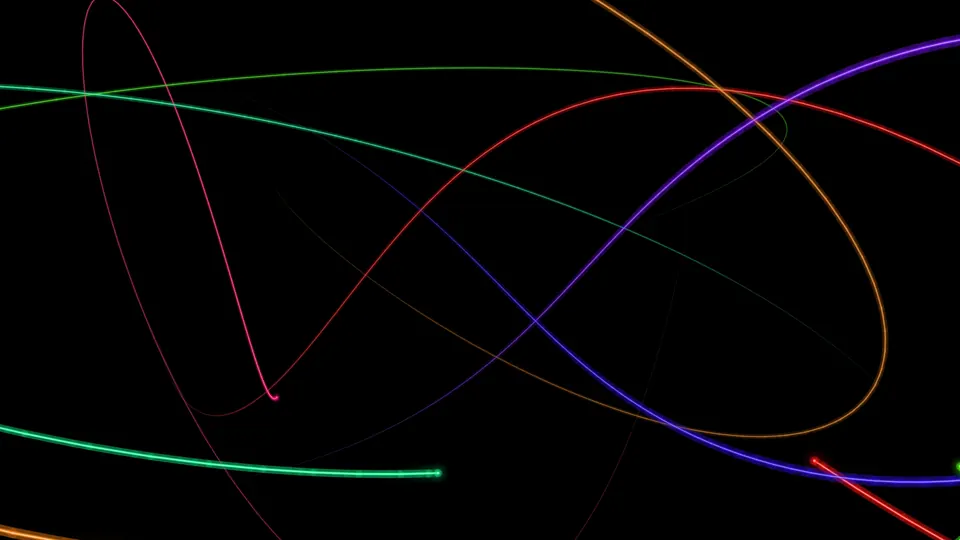 TRAILS
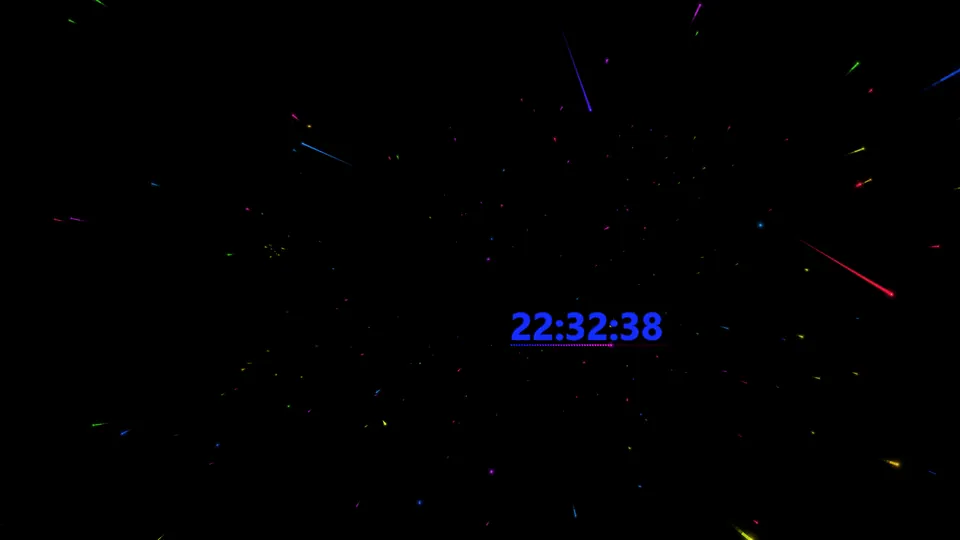 CLOCK
CLOCK SCAN LINE
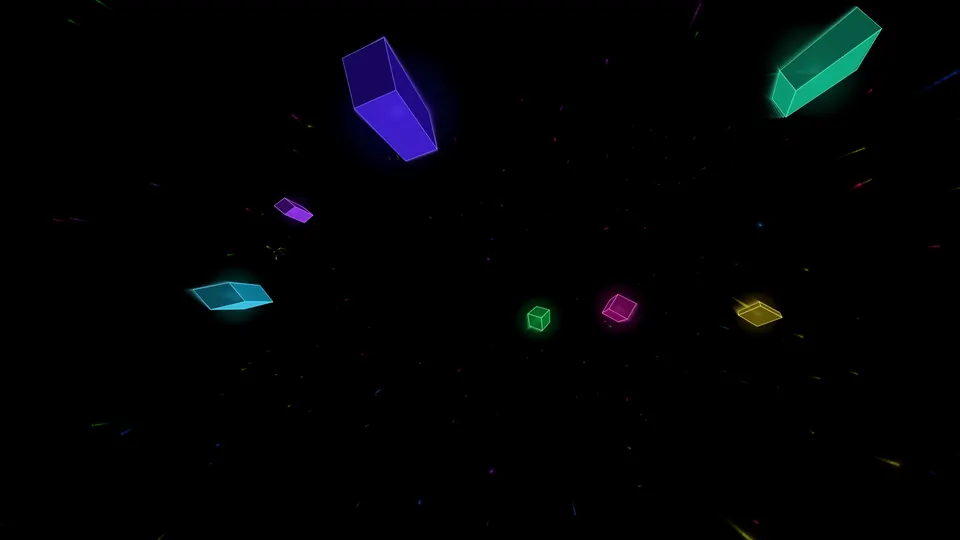 SHAPES
 TV static
Protection while you work
Works in the background while you work
Features that protect the screen while you work.
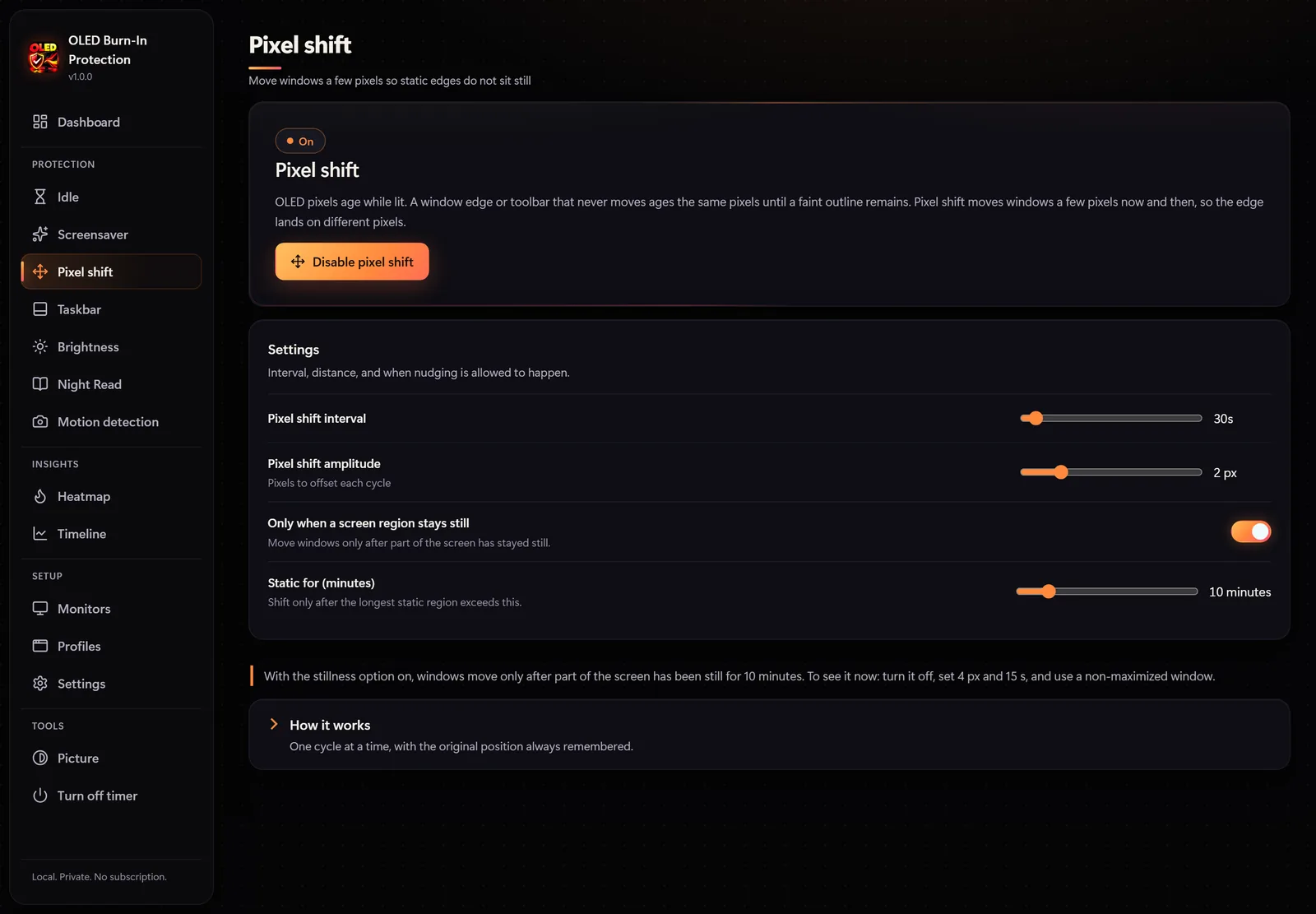
All features
Complete protection for your OLED panel
One lightweight app in the tray.
Heatmap: see which parts of the screen stay unchanged the longest
Daily static-exposure statistics, history and an HTML report
Dimming, an OLED screensaver, blackout or display off when you step away
20 OLED-safe screensavers in which every pixel keeps moving
Waits while video or music plays; never interrupts full-screen games
Pixel shift moves windows by a few pixels so edges keep changing
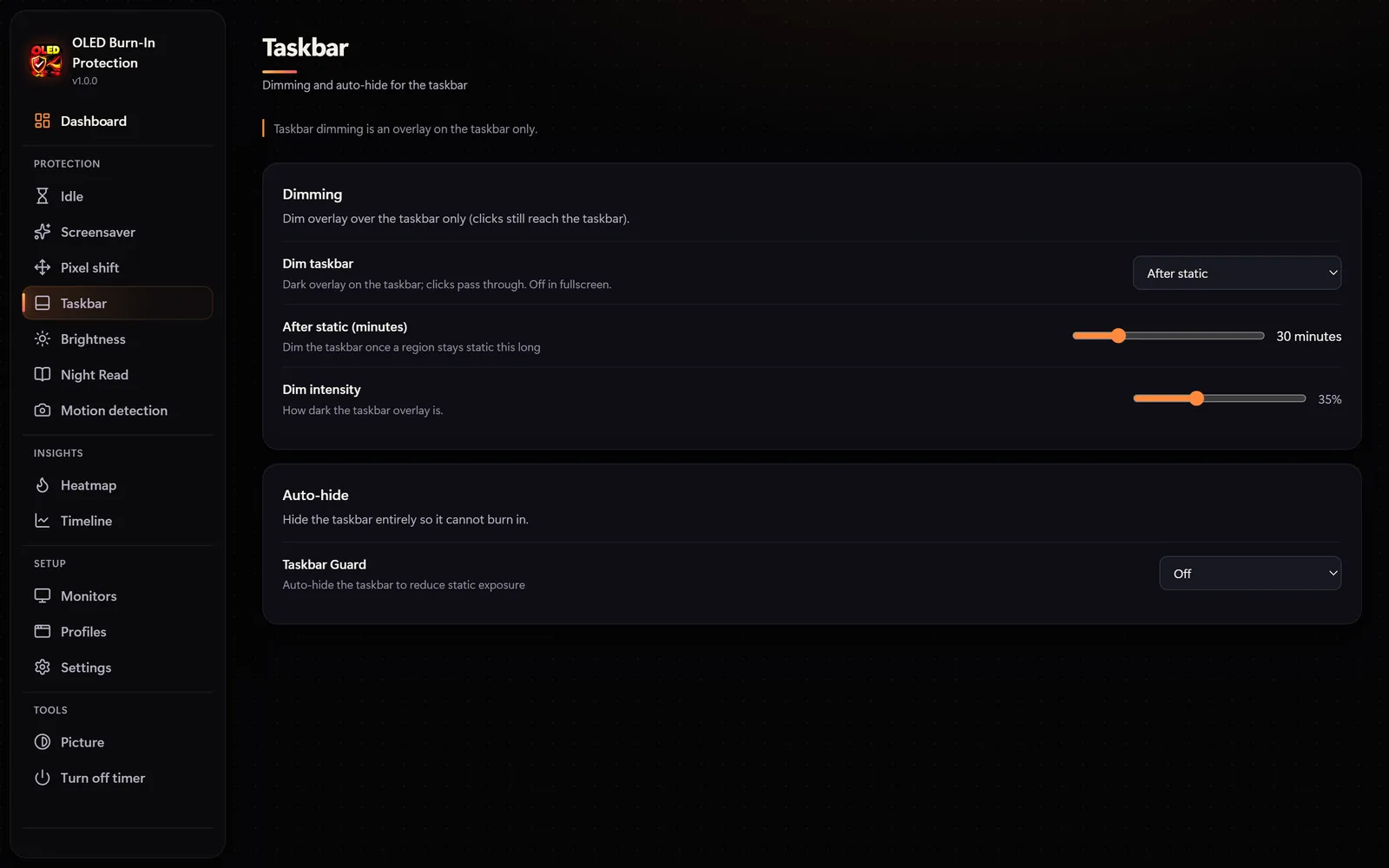
Taskbar dimming and auto-hide
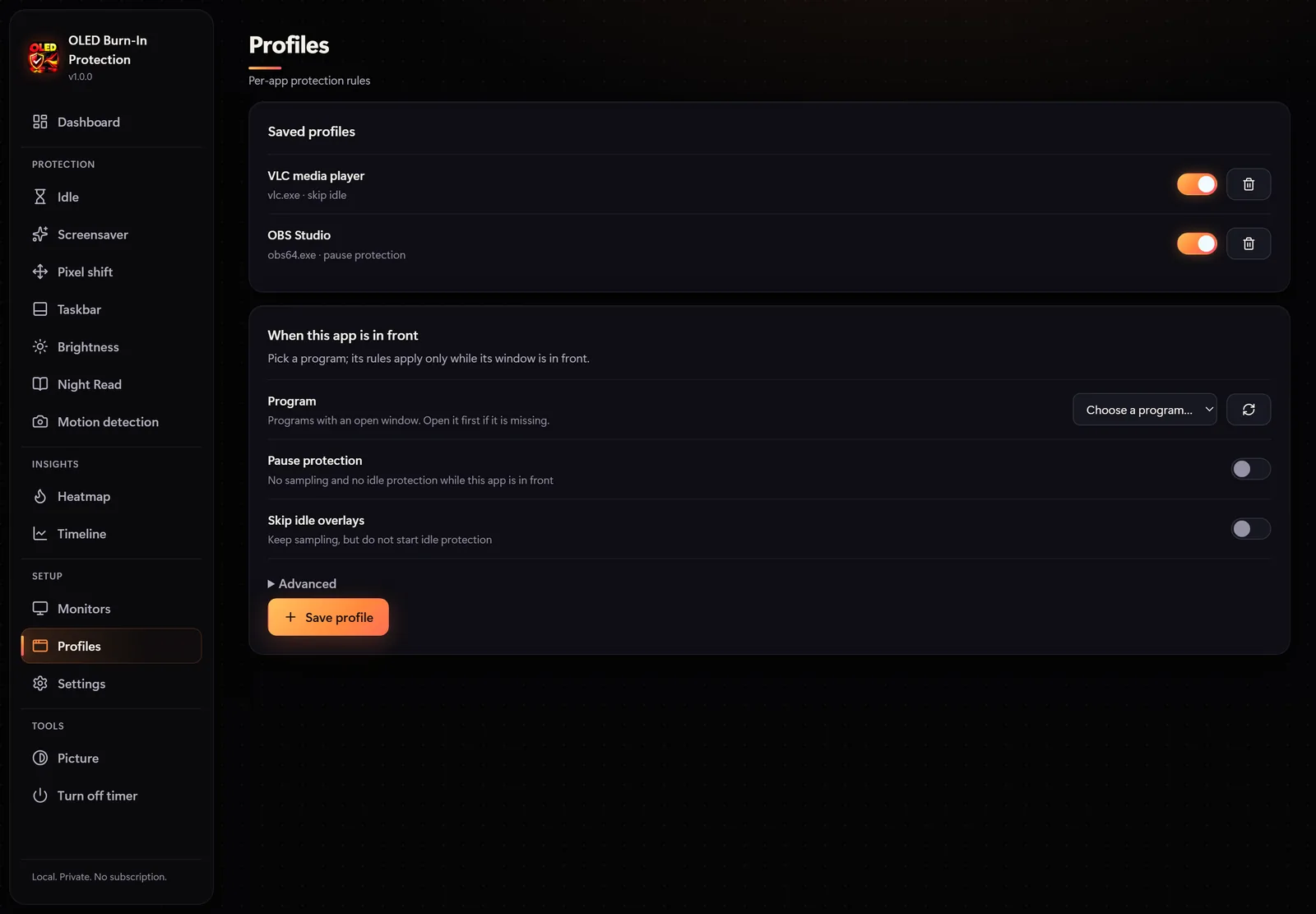
App rules: games, video players and streaming apps
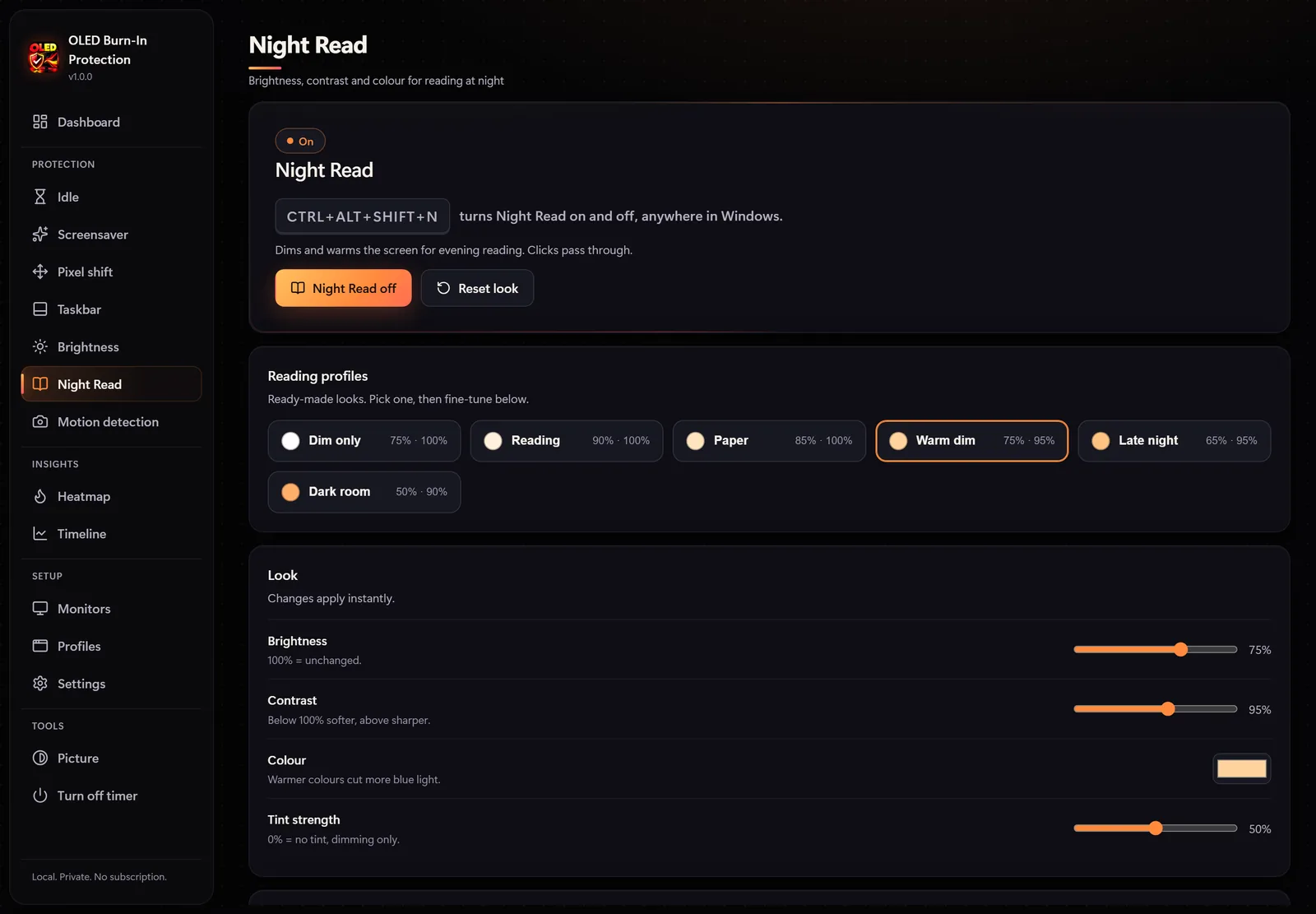
Night Read: a darker, warmer screen for reading, on a schedule or at sunset
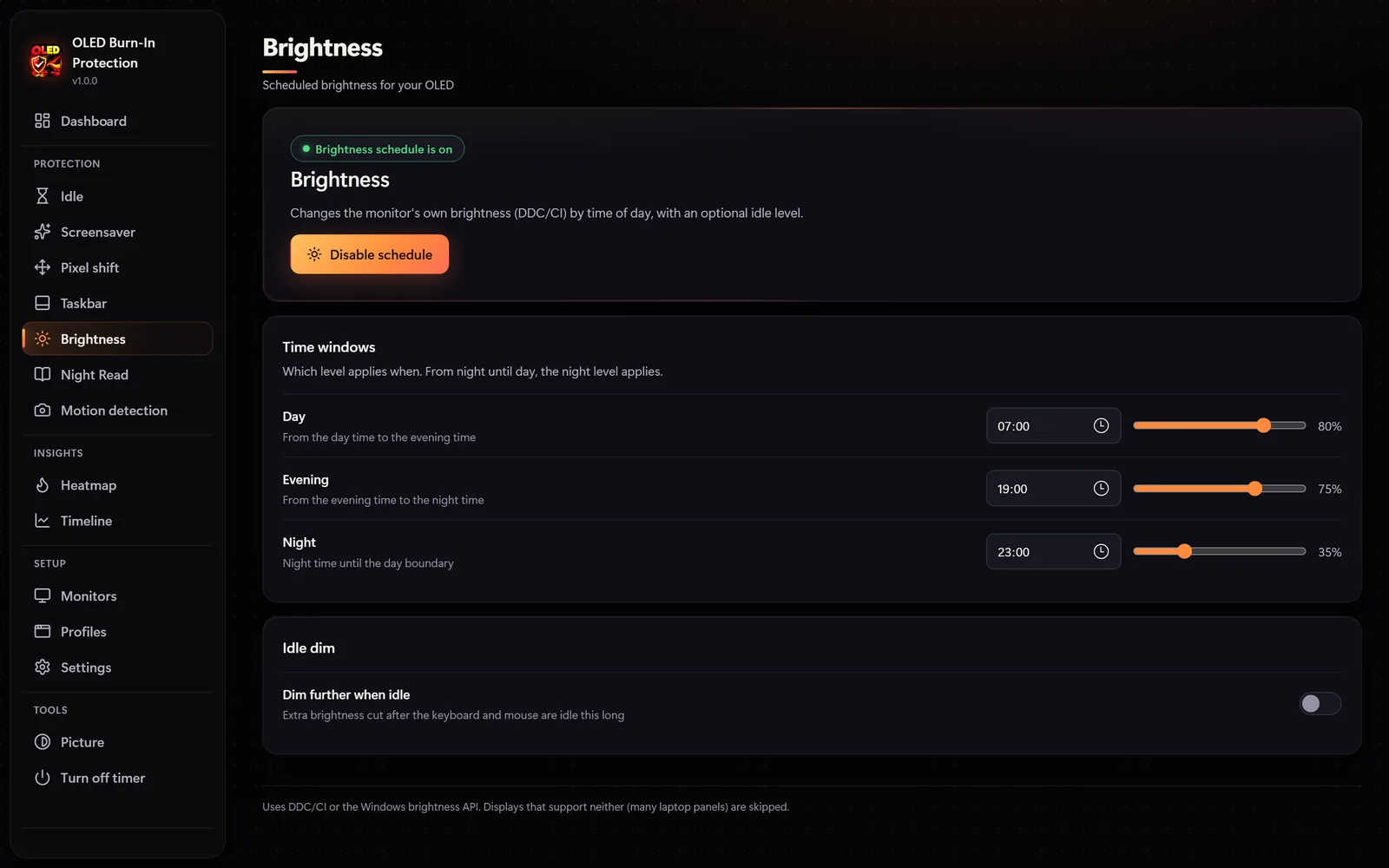
Brightness schedule for day, evening and night with a live preview (DDC/CI)
Optional camera presence detection, off by default
Several monitors at once
Global shortcuts: black screen, display off, Night Read and pause
Sleep timer with a warning and an option to cancel
Starts with Windows and runs quietly in the notification area
Restores the taskbar, colours and brightness when it closes
Picture: brightness, contrast, saturation and styles such as Deep black or Invert brightness
No account, cloud, ads or telemetry
Gallery
Every screen of the app
Specs
Requirements & details
| System | Windows 10 and Windows 11, 64-bit |
|---|---|
| Displays | OLED monitors, laptops and TVs; several monitors at once |
| Monitor brightness | Controlled via DDC/CI (if your monitor supports it) |
| Camera | Optional, off by default |
| Languages | 38, including English and PolishShow all languages
|
| Privacy | No account or cloud; analysis is local only, with no screenshots |
| Licence | One-time purchase, no subscription |
| Distribution | Microsoft Store, automatic updates |
The app reduces burn-in risk; it does not repair existing burn-in. Pixel refresh is a monitor feature.
FAQ
Frequently asked questions
Will the app fix existing burn-in?
No — it prevents it. Existing burn-in cannot be removed by software.
Will it get in the way of games and movies?
No. Protection waits while video or music plays and never interrupts full-screen games. Rules can switch it off for selected apps.
Does the camera record me?
No. The camera is off by default; when on, the app only sees a 32 × 18 grid of brightness values. Nothing is saved or sent.
Does the app save screenshots of my screen?
No. It stores statistics only.
What happens when I close the app?
The app restores the taskbar, colours and brightness to how they were before it started.
Is it a subscription?
No. You pay once in Microsoft Store — no subscription and no account with us.
More from Weedsee
You may also like


Disk Drive Cleaner Pro
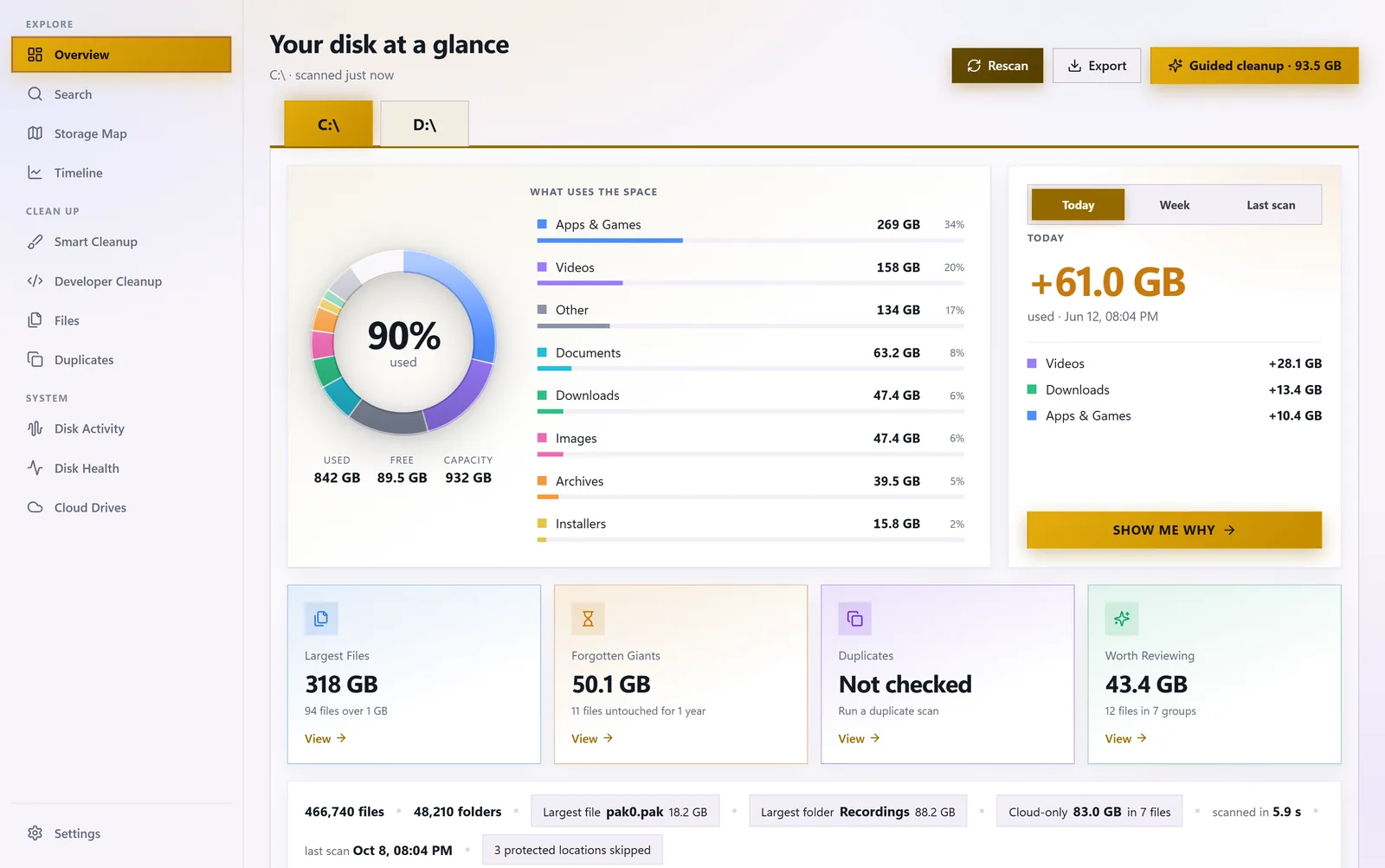
System toolsSee what is eating your disk space: storage map, duplicates, forgotten giants and safe cleanup.
Microsoft Store$8.99Details
OLED Burn-In Protection