Burn-in is the one real weakness of OLED. The good news: it is largely preventable, and most of the protection costs you nothing. Work through the sections below once and your monitor will be far safer for years.
What OLED burn-in is (and what it isn’t)
On an OLED panel every subpixel produces its own light. Those organic subpixels age a little every time they shine — faster at high brightness and the longer they are lit. When one part of the screen shows the same bright image for hours every day, its pixels age faster than their neighbours. The result is a faint permanent shadow of that image: burn-in.
Image retention is different. It is a temporary ghost that fades after a few minutes or hours of varied content, or after the monitor’s pixel refresh cycle. Retention is a warning sign; burn-in is the permanent version.
Software cannot repair real burn-in. Everything in this guide is about prevention — which is why it pays to start on day one.
This applies to both main OLED types used in PC monitors (WOLED and QD-OLED) and to OLED laptops.
Why a Windows desktop is hard on OLED
TVs mostly show moving pictures. A PC shows the same interface for hours:
- the taskbar, Start button, clock and tray icons,
- desktop icons and a fixed wallpaper,
- browser tabs and address bars, app toolbars and sidebars,
- game HUDs, minimaps and stream overlays, channel logos.
Add eight or more hours of daily use and these areas become the first candidates for wear. The aim is simple: keep anything static dimmer, moving or hidden.
Windows settings that reduce burn-in
- Auto-hide the taskbar. Windows 11: Settings → Personalization → Taskbar → Taskbar behaviors → Automatically hide the taskbar. Windows 10: Settings → Personalization → Taskbar → Automatically hide the taskbar in desktop mode. This single change removes the most static element of all.
- Use dark mode. Settings → Personalization → Colors → Choose your mode → Dark. Dark pixels emit less light and age more slowly. Turn on dark themes in your browser and main apps too.
- Use a dark or changing wallpaper. Settings → Personalization → Background — pick a dark image or Slideshow so the background is not identical every day.
- Hide desktop icons. Right-click the desktop → View → untick Show desktop icons.
- Turn the screen off sooner. Settings → System → Power & battery → Screen and sleep (Windows 10: Power & sleep). Five minutes or less is a good choice for an OLED.
- Lower the brightness. Office work rarely needs full brightness. With HDR on, use Settings → System → Display → HDR and lower the SDR content brightness slider.
- Go full screen. Press F11 in browsers and use full-screen mode in video players to hide static toolbars.
Remember that the lock screen is static too. If you lock your PC and walk away, make sure the display turns off shortly after.
Use your monitor’s built-in protection
Most OLED monitors and laptops have panel-care features. The names vary by brand, so look in the on-screen menu for these:
- Pixel shift / pixel orbit — moves the whole image by a few pixels from time to time. Keep it on.
- Static content or logo dimming — lowers the brightness of areas that stay unchanged, such as the taskbar or a logo.
- Pixel refresh / panel care — a compensation cycle that evens out wear and clears image retention. It usually runs automatically when the monitor goes into standby after some hours of use.
Let pixel refresh do its job: switch the monitor off with its power button or let it go to standby, and do not cut its power at a power strip right away. Run a manual refresh only when the manufacturer recommends it, for example when you notice retention.
Also check your warranty. Several manufacturers now cover burn-in for a few years on their OLED monitors — worth knowing before you need it.
Habits that make a real difference
- Do not leave a static picture on screen when you step away — a paused game, a dashboard, a spreadsheet.
- Move things around. Do not keep the same window in exactly the same spot all day, every day.
- In games, lower the HUD opacity or brightness if the game allows it, and do not leave the pause menu open.
- Watch video full screen rather than in a small window surrounded by a static page.
- Use a mix of content. Gaming and video between long work sessions helps wear the panel more evenly.
Automate it with OLED Burn-In Protection
The settings above help, but they rely on you remembering. OLED Burn-In Protection is our app that does it for you in the background:
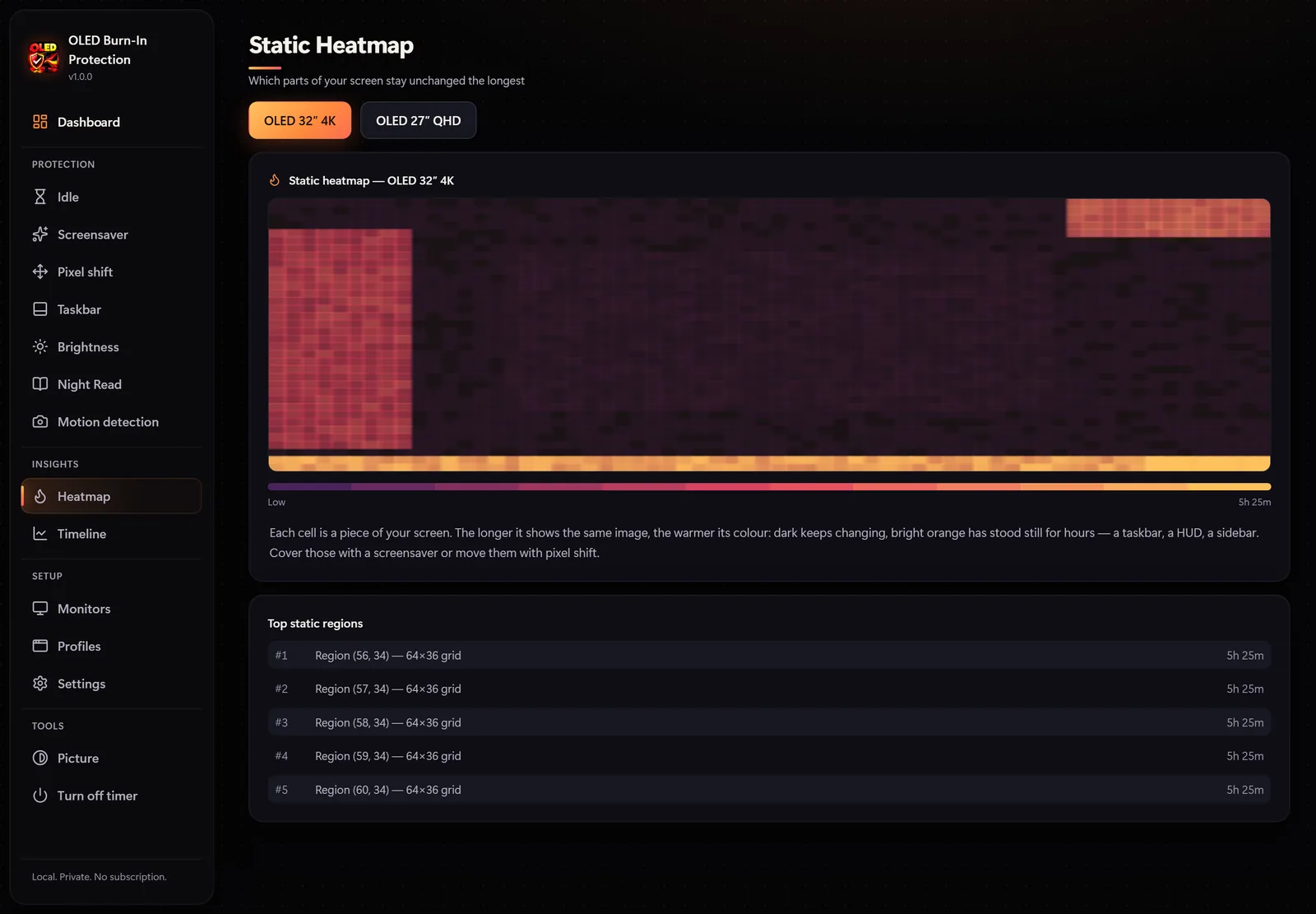
- Heatmap — shows which parts of your screen stay unchanged the longest, with a list of the most static regions and daily statistics.
- When you step away — after a few idle minutes it dims the screen, starts one of 20 OLED-safe screensavers (mostly black, always moving), shows a black screen or turns the display off.
- Smart about media — waits while video or music plays and never interrupts full-screen games or movies.
- While you work — pixel shift moves windows by a few pixels so their edges keep changing, and the taskbar is dimmed or hidden when it has not changed for a while.
- Brightness and Night Read — a brightness schedule for day, evening and night (via DDC/CI, if your monitor supports it) and a darker, warmer mode for evening reading.
- Optional presence detection — like flagship OLED monitors, it can use an ordinary webcam to notice you have left. Off by default; the app only sees a 32 × 18 grid of brightness values, and nothing is saved or sent.

When you close the app it restores the taskbar, colours and brightness. There is no account and no cloud, and screen analysis runs locally without saving screenshots.
Quick checklist
- Taskbar set to hide automatically
- Dark mode in Windows and your main apps
- Dark or rotating wallpaper, no desktop icons
- Screen turns off after 5 minutes or less
- Brightness and SDR brightness at a comfortable, not maximum, level
- Monitor’s pixel shift and static dimming on; pixel refresh allowed to run in standby
- Nothing static left on screen when you step away
Frequently asked questions
Can OLED burn-in be fixed?
Permanent burn-in cannot be repaired by software. Temporary image retention usually fades on its own or after the monitor’s pixel refresh cycle. If you see lasting marks, check whether your warranty covers burn-in.
How long does an OLED monitor last before burn-in?
There is no fixed number — it depends on brightness, how static your content is and how many hours a day you use it. Bright, static content for many hours a day is the main risk; with varied use and the precautions in this guide, the risk is much lower.
Is dark mode enough to prevent burn-in?
It helps, because dark pixels emit less light and age more slowly, but static elements still stay in the same place. Combine it with an auto-hiding taskbar, a short screen timeout and pixel shift.
Should I run pixel refresh manually?
Usually not. Most monitors run it automatically in standby. Follow your manufacturer’s guidance and use the manual option mainly when you notice image retention.
Do screensavers protect an OLED screen?
A black or constantly moving screensaver is much better than a static desktop. Classic screensavers with fixed bright parts are not. For longer breaks, turning the display off is best.